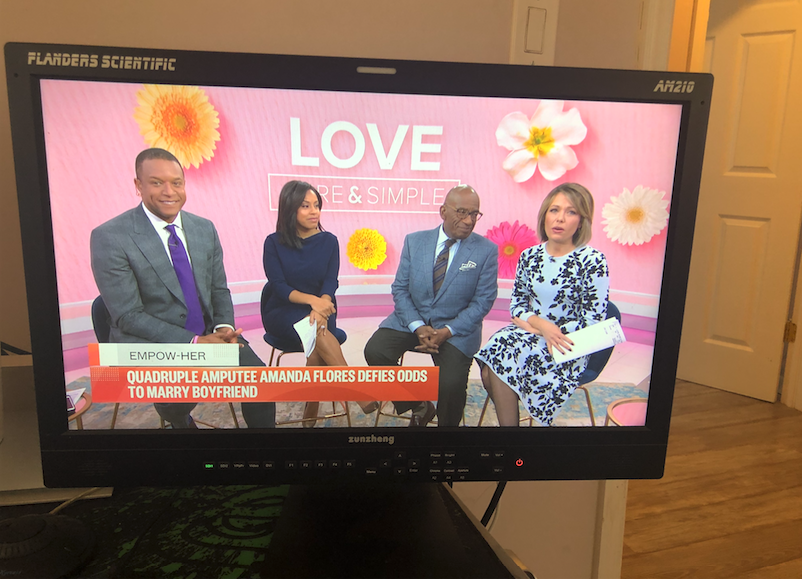
When things went Remote in our industry, I wanted to stand out and I decided to make the jump to set up a editing bay with an industry standard Broadcast Monitor. I found a production company was selling their gear at a discounted price, and I picked up a old Mac Pro 6 Core as well as Flanders Scientific Calibrated Broadcast Monitor. The monitor is a Flanders Scientific AM210 – The picture quality blew my mind because the colors and picture quality looked SO REAL and sharp. The features in the reference monitor let you have embedded Scopes and Audio Meters, Timecode, Safety Markers for Network Bugs, Sharpness/Phase/Chroma/Contrast/Aperture Adjustments, and ton’s of other features. Also their support team is top notch. NEEDLESS to say there is a reason why Flanders is at the top of their game. They care and their products are AMAZING. **This is not a tutorial on how to calibrate your broadcast monitor (I have a flanders that was pre-calibrated). I am sure you can find how to calibrate on other blogs or video posts with color bars.
I originally set it up with DVI and it still looked great. I quickly realized, since I invested in this monitor, I want to set it up correctly with crystal clear Broadcast Quality, frame, color and picture accuracy. In order to set it up, you will need the correct I/O Device. The most affordable option for Remote Editors is the Blackmagic UltraStudio Mini Monitor, you can pick it up new at $145.. Or used at a discounted price. This device will enable you to playout broadcast quality as well as being future proof for remote work great for broadcast and digital content!
If you have Thunderbolt 2 on your Mac, get the BlackMagic UltraStudio Mini Monitor, if you have Thunderbolt 3, you will need the Ultrastudio 3G Monitor. If you have a different brand SDI Broadcast Monitor, you can still follow these steps.
The SDI (Serial Digital Interface, which is an industry standard Broadcast Cable which is transferring 3G speeds) enables fast speed to transfer Broadcast Quality Video.
You will need: HD-SDI RG-6 BNC Cable True 75 Ohms Connector

The 3G HD-SDI Broadcast Cable will lock into the SDI output of the Blackmagic Mini Monitor. The SDI are locking cables for secure connections. These are used for productions as well because they are locked into studio or field cameras securely usually at a large distance. Connect the Apple Thunderbolt 2 Cable and to your Mac.


The Other side of the SDI out of the I/O Device goes into the input of the Broadcast monitor / In my case it is the SDI1 Input of the monitor

Click the SDI1 Button to on your Broadcast Monitor


On the Mac Level, Download and Install Blackmagic Desktop Video Drivers
Launch The Desktop Video software

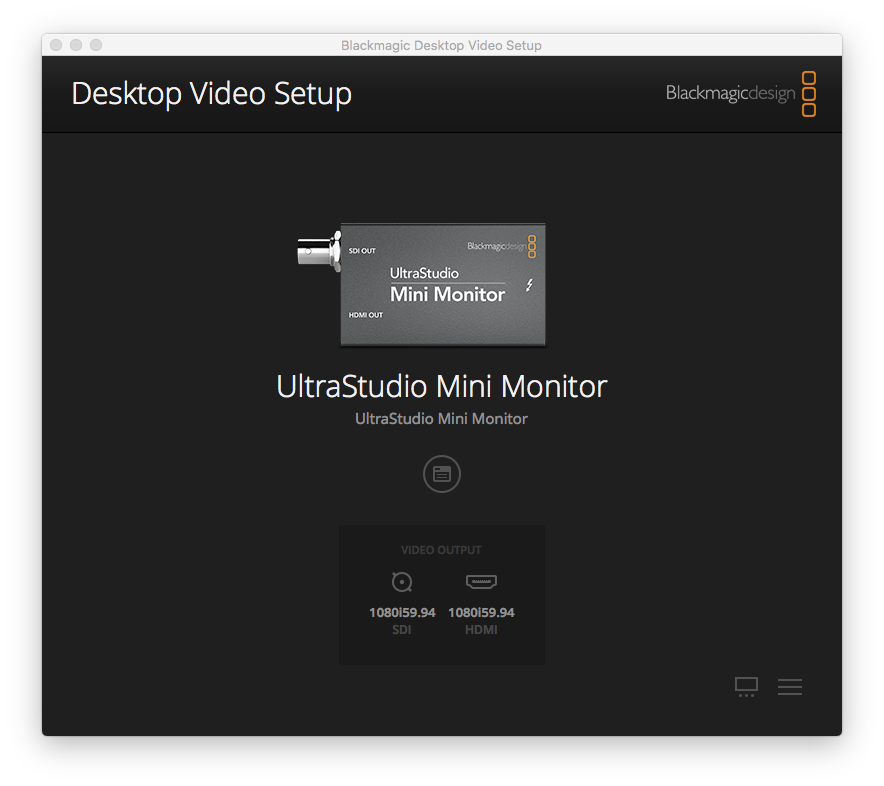
Click the button below the Mini Monitor text with (the round Icon)
Match your edit timeline specs in your mini monitor. In my case, I am in 1080i 29.97 Adobe Premiere Setting. So I am using 1080i 59.94 SDI. Which is technical the same thing. If you are in progressive scan, change the setting here.

Within Adobe Premiere Pro, Near the Apple logo on the top left screen click Preferences > Playback
Make sure enable Mecury Transmit > Select check on Blackmagic Playback

Set up the I/O Device control for blackmagic

I have my speakers, set up through the monitor so the audio playback might be different if you have a mixing board.

Press Okay now and you should be ready to roll. Your playout is now set-up. Please note this will not give you an external display, if you want that, I will make another blog post on how you can do that. This will give you the Show Program properly played back on the reference monitor. People get confused with that. From there, you should have a great looking picture!

Some of the features, you should be able to have the Timecode and Audio Meters fed into the monitor via SDI! I personally love these features while I am editing.


Bottom line is I hope this is clear how to properly set up a broadcast monitor for proper playback while editing.
Thanks so much for reading this, cheers!
ABOUT THE AUTHOR: